Author: admin

  • Lorem Ipsum in Canva: How to Add Placeholder Text to Your Designs

    Lorem Ipsum in Canva: How to Add Placeholder Text to Your Designs

    If you design posters, presentations or social media graphics in Canva, you have probably faced the same problem every designer meets: the layout is ready, but the words are not. That is when lorem ipsum in Canva saves the day. With a few lines of placeholder text, you can see exactly how a design will look before the real copy arrives — and adding it takes less than a minute.

    Canva has no built-in lorem ipsum button, so most designers use a simple copy-and-paste workflow. This guide shows you how to add lorem ipsum in Canva step by step, how to use canva placeholder text well, and how to avoid the mistakes that make a mockup look unfinished. You can use the same method for posters, flyers, presentations, social posts and website mockups.

    Why Use Lorem Ipsum in Canva?

    Placeholder text does one job: it lets you judge the design, not the words. When you add lorem ipsum canva text to a layout, you can check spacing, font sizes and balance without getting distracted by draft copy that is not final yet.

    It is useful whenever:

    • The copy is still being written — the design can move ahead while the words catch up.
    • You are showing a client a mockup — the layout speaks for itself instead of showing empty boxes.
    • You are testing a template — filler text shows how the design handles short and long passages.
    • You are comparing fonts — neutral text makes differences in typefaces easy to see.

    The rule is simple: placeholder text is a stand-in. Replace it with real words before you share or publish the final design. Our complete guide to dummy text explains what lorem ipsum is and where it comes from, if you want the background first.

    Method 1: Generate Lorem Ipsum and Paste It Into Canva

    This is the fastest way to add lorem ipsum in Canva, and it works with a free account.

    1. Open our free Lorem Ipsum Generator in a new tab.
    2. Choose how much text you need — a few sentences for a small card, or several paragraphs for a longer layout.
    3. Click generate, then copy the text.
    4. Back in Canva, click Text in the left sidebar and choose Add a heading, Add a subheading or Add a little bit of body text, depending on the size you need.
    5. Click inside the new text box, delete the sample words Canva puts there, and paste your lorem ipsum.
    6. Resize the box and adjust the font size until the text fills the space the way your final copy will.

    That is the whole workflow. The generator is free, needs no sign-up, and you can repeat it as often as you like. If you work in Figma as well as Canva, the same copy-paste idea works there too — see our guide to lorem ipsum in Figma.
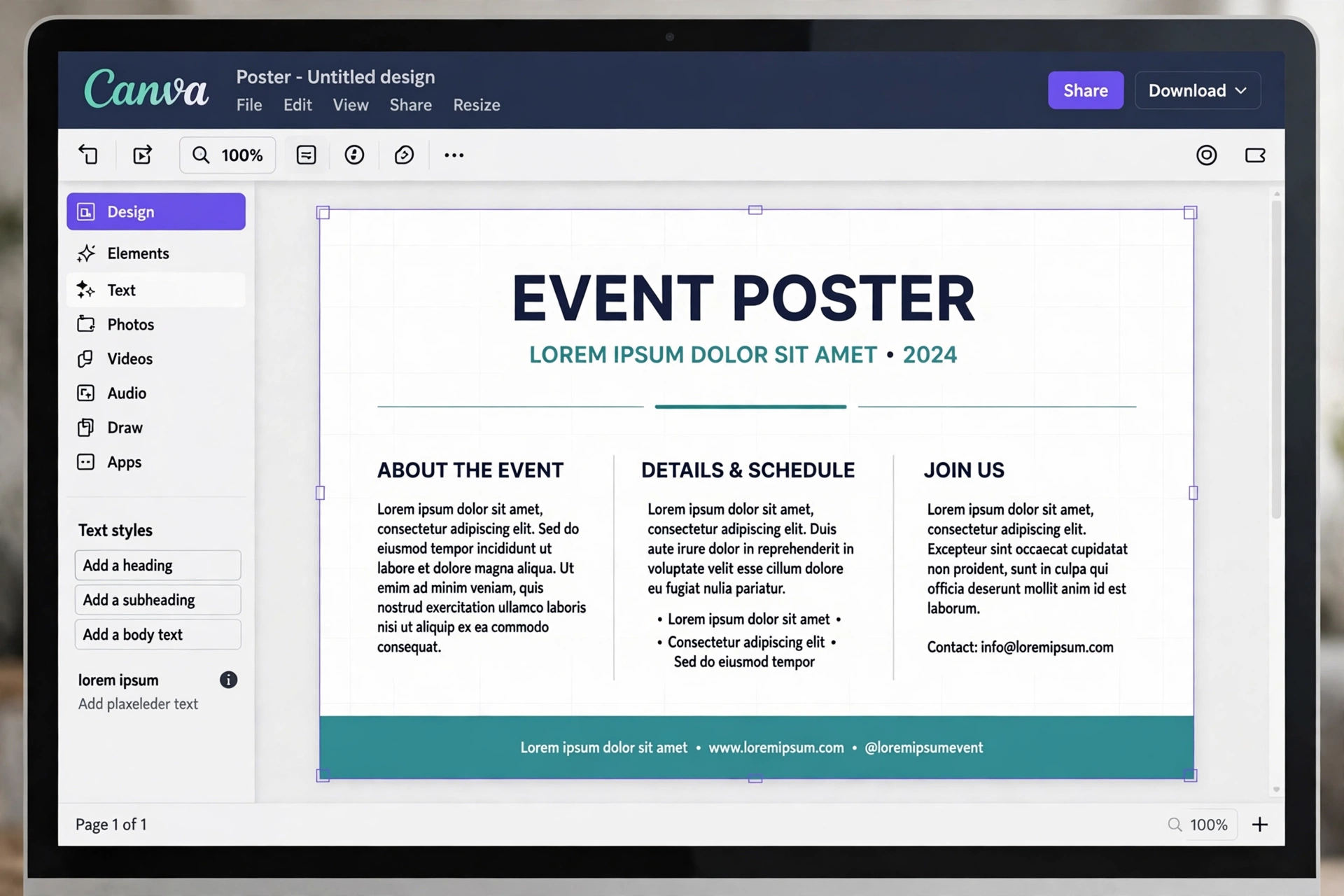
    A Canva poster design filled with lorem ipsum placeholder text

    Method 2: Build a Reusable Placeholder Text Block

    If you use canva placeholder text often, save yourself the repeat work. Create one design that holds a few ready-made placeholder blocks — a heading, a short paragraph and a long paragraph — and duplicate it whenever you start a new project.

    1. Open a blank design and add three text boxes with different amounts of lorem ipsum.
    2. Set each one in a font and size close to what your finished designs usually use.
    3. Name the design something easy to find, such as “Placeholder Text Template”.
    4. When you start a new design, duplicate this template, copy the block you need, and paste it into your new design.

    Canva saves your designs automatically, so the template stays in your projects until you need it again. This small habit is a big time-saver when you mock up several designs in a day.

    Method 3: Check Canva’s Apps Section for Extra Text Tools

    Canva’s left sidebar has an Apps section with extra tools that extend what Canva can do. If you add placeholder text every day, it is worth a quick look there for text helpers — new apps appear regularly, and some are made for exactly this job.

    A word of caution: only use apps from Canva’s own Apps section, and read what an app does before you connect it. A simple copy-and-paste from a free generator is usually faster than installing anything, and it works for every design type.

    Using Lorem Ipsum in Canva for Website Mockups

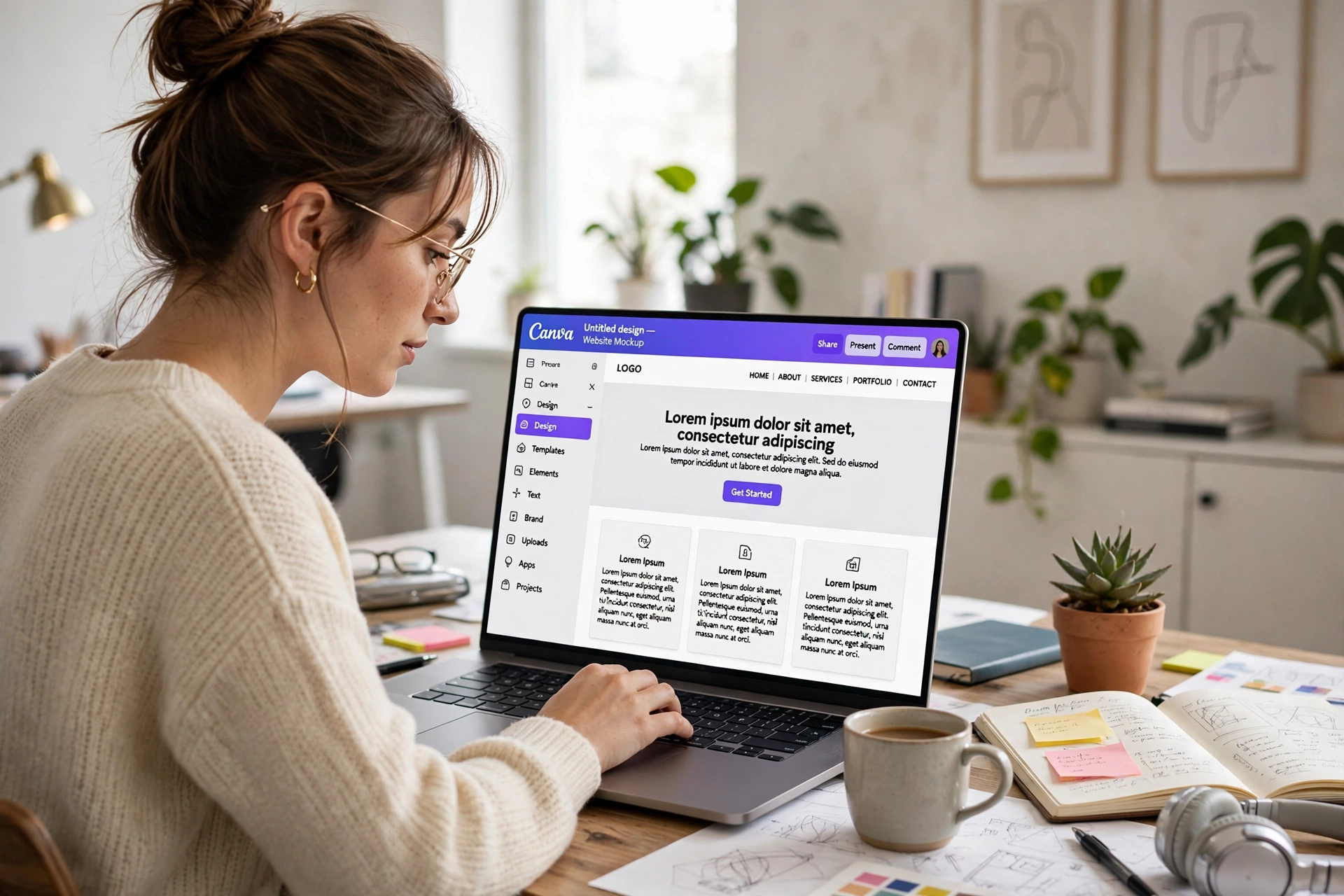
    Canva is a popular way to sketch a website before it is built, and this is where lorem ipsum for website mockups earns its keep. A homepage design with real-looking paragraphs shows a client how the finished site will feel — far better than grey boxes or a single repeated line.

    When you build a website mockup in Canva:

    • Match the length. If the real homepage will have three short paragraphs, use three short paragraphs of filler. Too much text makes the layout look crowded; too little makes it look empty.
    • Use one filler style throughout. Mixing different placeholder styles in one mockup looks untidy and distracts from the design.
    • Keep headings short. Real headings are rarely more than a few words, so keep your placeholder headings short too.
    • Note what is filler. If you share the mockup with a client, a short note that the text is placeholder copy avoids confusion later.

    Once the layout is approved, hand the design to whoever writes the real copy, with the text lengths as a guide. That is the real value of placeholder text: it turns “we need words here” into “we need about this much text here”.

    Tips for Better Placeholder Text in Canva

    • Pick the font first. Placeholder text looks most realistic in the font your final design will use, so set the typeface before you paste.
    • Do not use one giant block. Several smaller paragraphs show how a real page flows much better than a single wall of text.
    • Leave breathing room. Text that touches the edge of a box looks like a mistake, so keep a small margin inside every text box.
    • Replace filler before you download. Canva lets you download or share a design in one click, so it is easy to export a version that still has lorem ipsum in it. Always do a final read-through first.
    • Keep a consistent look. If one page uses classic lorem ipsum, do not switch to a different filler style on the next page of the same project.

    Common Mistakes to Avoid

    • Publishing a design with placeholder text still in it. This is the biggest mistake of all. Search engines, clients and customers all notice filler text on a live page or a printed flyer.
    • Using filler text to judge readability. Lorem ipsum shows how a layout looks, not how easy your real words will be to read. Test readability with real copy.
    • Copying too little text. A single sentence in a space meant for a paragraph hides layout problems that appear as soon as the real text arrives.
    • Forgetting mobile sizes. If your design will be seen on a phone, check how the placeholder text wraps at a narrow width before you call the layout finished.

    Frequently Asked Questions

    Does Canva have a built-in lorem ipsum generator?

    No. Canva does not include a built-in lorem ipsum tool. The quickest method is to generate the text with a free online tool and paste it into a Canva text box, as described in Method 1 above.

    Is lorem ipsum free to use in Canva designs?

    Yes. Lorem ipsum is scrambled Latin text in the public domain, so you can use it in personal and commercial designs without worrying about copyright. Just remember to replace it with real copy before the design goes live.

    How much placeholder text should I add in Canva?

    About as much as your final copy will be. A poster with two short paragraphs needs two short paragraphs of filler. Matching the length keeps the layout honest and stops it breaking when the real words arrive.

    Can I use lorem ipsum in Canva for client work?

    Yes, for mockups and drafts. Clients understand placeholder text when you tell them what it is. Always replace it with approved final copy before you deliver or publish the finished design.

    Conclusion

    Adding lorem ipsum in Canva is a small skill that makes a real difference to your designs. Generate the text, paste it into a text box, and you can judge spacing, fonts and balance in seconds — whether you are making a poster, a presentation or a website mockup. Keep a reusable placeholder template, match the filler to the length of your final copy, and always swap it for real words before the design goes out the door.

    Try it on your next design: open our free lorem ipsum generator, grab a paragraph of placeholder text, and paste it into Canva. Your mockups will look finished from the first draft — and your clients will see the design, not a blank page.
  • Lorem Ipsum in Figma: How to Add Placeholder Text to Your Designs

    Lorem Ipsum in Figma: How to Add Placeholder Text to Your Designs

    If you design in Figma, you have probably stared at a beautiful layout with empty text boxes and wondered what to put in them. That is where lorem ipsum in Figma comes in. A few lines of placeholder text let you see how a design will really look — how long a headline runs, whether a card fits its paragraph, and how a page flows — long before the final copy exists.

    This guide shows you the three easiest ways to add figma placeholder text to your designs: pasting it in from a free generator, using a figma lorem ipsum plugin, and reusing text styles so your filler stays consistent. No sign-up, no cost, and no design experience beyond the basics of Figma.

    Why Designers Use Lorem Ipsum in Figma

    Real copy draws the eye to the words. Placeholder text draws the eye to the design. When a client or teammate looks at a mockup filled with lorem ipsum, they judge the layout, the spacing and the type — not a half-finished sentence you wrote in a hurry.

    That is why placeholder text figma workflows are standard in UI and web design. Filler text is useful for:

    • Wireframes — showing the structure of a page before any real content exists.
    • High-fidelity mockups — testing how a finished screen will look with realistic text lengths.
    • Design systems — checking that a card, list or article component works with short and long text.
    • Client presentations — keeping the focus on the design instead of draft wording.

    Figma does not include a built-in lorem ipsum button, so designers add it with a plugin or by pasting text from a generator. Both ways take less than a minute once you know them.

    Method 1: Paste Lorem Ipsum from a Free Generator

    The simplest way to add lorem ipsum in Figma is to generate the text outside Figma and paste it in. This works in every version of Figma, including the free plan, and it needs no plugin at all.

    1. Open our free Lorem Ipsum Generator and choose how many paragraphs or words you need.
    2. Click generate, then copy the text.
    3. In Figma, select the Text tool (or press T) and draw a text box where the copy will go.
    4. Paste the text in. Figma keeps your font, size and line height, so the filler instantly looks like part of the design.

    This method gives you the most control. You can generate exactly the length you need — a single sentence for a button label, or three paragraphs for a blog card — and you can regenerate it as many times as you like. If you are new to filler text, our complete guide to dummy text generators explains what each type of generator does and when to use it.

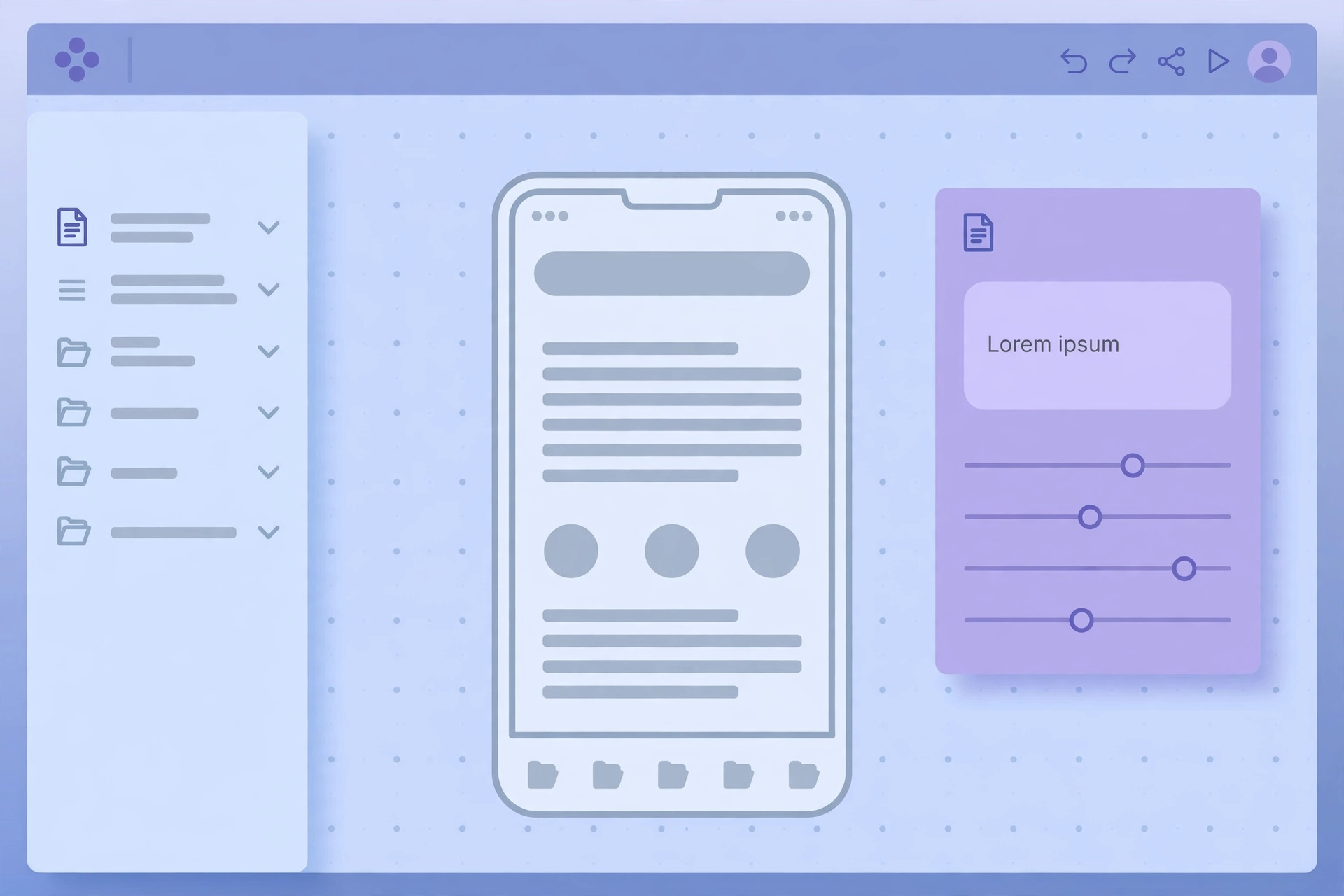
    A Figma canvas showing a mobile app wireframe filled with lorem ipsum placeholder text

    Method 2: Use a Figma Lorem Ipsum Plugin

    If you add filler text often, a figma lorem ipsum plugin saves you the trip to the browser. Plugins live inside Figma, so you generate text without leaving your canvas.

    1. With a text layer selected, open the Resources menu (or press Shift + I) and choose Plugins.
    2. Search for “Lorem Ipsum” in the Community plugins.
    3. Pick a plugin, choose how many paragraphs, sentences or words you want, and run it. The plugin fills your selected text layer with dummy text.

    Some plugins also offer a lorem ipsum generator figma workflow with extra options, such as starting with the classic “Lorem ipsum dolor sit amet” line or generating headings as well as body copy. Try one or two and keep the one whose settings match how you work — most of the popular options are free.

    A plugin is fastest when you are already deep in a file. The generator method is better when you want precise control over length, or when you are working on a computer where you cannot install plugins.

    Method 3: Reuse Placeholder Text with Text Styles and Components

    Once you have good filler in one frame, do not retype it everywhere. Figma’s text styles and components turn a one-off paste into a reusable pattern:

    • Save a text style for your placeholder copy, so every filler block uses the same font, size and spacing as the real text will.
    • Make a component from a card or article block that contains lorem ipsum. Then duplicate the component across your file — each copy keeps the same realistic text length.
    • Use Auto Layout on frames with placeholder text, so the frame grows or shrinks as you swap short filler for long filler. This shows you straight away whether a design breaks with longer copy.

    This is where figma placeholder text earns its keep. A component filled with realistic dummy text behaves almost like the finished product, so layout problems show up in the design file instead of after handoff.

    How Much Placeholder Text Should You Use?

    The golden rule is simple: generate about as much text as the real copy will be. If the final paragraph will be two lines, two lines of filler show you the true layout. A full page of lorem ipsum in a space meant for one sentence gives a misleading preview — and it makes the design look busier than it will be.

    A few practical tips:

    • Match the length. Short labels get a few words; article cards get a sentence or two; blog pages get full paragraphs.
    • Vary it. Use different lengths in different cards, so you can see whether the layout still works when one card has more text than the others.
    • Replace it before handoff. Placeholder text is a stand-in, not a deliverable. Swap in real copy before the design goes to development or to a client as final.

    Placeholder Text for Wireframes vs. Finished Mockups

    Not every stage of a project needs the same kind of filler. In early wireframes, grey bars or a single line of lorem ipsum are enough — the point is structure, not typography. In a finished mockup, use full sentences with your real text styles, because the client is judging how the page will actually read.

    If you want something other than classic Latin filler, there are lorem ipsum alternatives too — plain-English dummy text, random words, or text made from your own sample copy. They all do the same job; lorem ipsum is simply the one designers recognise instantly, which is why it stays the default in most Figma files.

    Common Mistakes to Avoid

    • Leaving lorem ipsum in a shipped design. Always search your file for “lorem” before handoff — a stray paragraph in a live product looks unfinished.
    • Using the same block everywhere. Identical filler in every card hides the fact that real content varies in length.
    • Judging readability on filler. Lorem ipsum shows you how a design looks, not how easy your real words will be to read.
    • Forgetting mobile. Check your placeholder text at mobile widths too — a paragraph that fits on desktop can overflow a phone screen.

    Frequently Asked Questions

    Does Figma have a built-in lorem ipsum generator?

    No. Figma does not include a built-in lorem ipsum feature, so designers add placeholder text with a Community plugin or by pasting text from a free generator such as ours.

    Is there a free lorem ipsum plugin for Figma?

    Yes. Several free plugins in the Figma Community generate lorem ipsum inside your file. Search for “Lorem Ipsum” under Plugins in the Resources menu and pick one with the options you need.

    Can I use lorem ipsum in a commercial Figma project?

    Yes. Lorem ipsum text is in the public domain, so you can use it freely in personal and commercial designs, mockups and templates.

    What is the fastest way to add placeholder text in Figma?

    For a single text box, paste from a generator — it takes seconds. If you add filler text every day, install a figma lorem ipsum plugin once and generate it inside Figma from then on.

    Conclusion

    Adding lorem ipsum in Figma is a small habit that makes a big difference: it turns empty frames into designs you can actually judge. Paste it in from a free generator when you want control over length, use a figma lorem ipsum plugin when you want speed, and reuse your filler through text styles and components so every screen stays consistent. Try it on your next wireframe — generate the text, drop it in, and let the design speak first.

  • Lorem Ipsum Generator: The Complete Guide to Dummy Text, Placeholder Text and Random Text Generators

    Lorem Ipsum Generator: The Complete Guide to Dummy Text, Placeholder Text and Random Text Generators

    If you have ever built a website, designed a flyer or mocked up an app screen, you have probably needed filler text that looks like real writing without saying anything yet. That is exactly what a lorem ipsum generator does. In a single click, this free online tool creates dummy text you can drop into any design, so you can judge how a layout looks before the final words are written.

    People search for this tool in many different ways — as a lipsum generator, a dummy text generator, a placeholder text generator or a random text generator — but they all mean the same thing: a quick way to get realistic-looking Latin-style filler text. This guide explains what each variation does, when to use it, and how to get the best results from our free Lorem Ipsum Generator.

    What Is Lorem Ipsum?

    Lorem ipsum is scrambled Latin text that has been used as placeholder copy in printing and design since the 1500s. Its most famous opening line, “Lorem ipsum dolor sit amet”, comes from a work by the Roman writer Cicero, written in 45 BC. Because the words carry no real meaning for modern readers, they let you focus on the look of a page — the typeface, spacing and layout — instead of getting distracted by the content.

    That is why designers still reach for it today. Real copy draws the eye to the words; placeholder text draws the eye to the design.

    What Is a Lorem Ipsum Generator?

    A lorem ipsum text generator is a simple online tool that produces as much filler text as you need. You choose how many paragraphs, sentences or words you want, click generate, and copy the result into your project. There is nothing to install and no account to create.

    Most generators, including ours, let you control:

    • Paragraphs — how many blocks of dummy text you get.
    • Sentences or words — the length of each block.
    • Starting text — whether the first paragraph begins with the classic “Lorem ipsum dolor sit amet” line.

    Whether you call it a lorem ipsum generator, a lipsum generator or a dummy text generator, the job is the same: realistic filler text, instantly.

    The Main Types of Dummy Text Generators

    Not every project needs the same kind of filler. Here are the variations people use most, and what each one is best for.

    1. Lorem Ipsum Text Generator

    The classic option. A lorem ipsum text generator produces the familiar Latin-style paragraphs used in print and web design for centuries. Use it for website mockups, brochures, presentations and any layout where the final copy is not ready yet.

    2. Lorem Ipsum Paragraph Generator

    When you need full blocks of text rather than single lines, a lorem ipsum paragraph generator is the right choice. It is ideal for testing how a page of body copy will look — column widths, line spacing and how much space a long article will take up.

    3. Lorem Ipsum Dolor Generator

    Some people search for a lorem ipsum dolor generator because they remember the opening phrase “Lorem ipsum dolor sit amet”. It is the same classic text, starting with that exact line. If your design needs the traditional opening, make sure the generator you use starts with it.

    4. Dummy Text Generator

    A dummy text generator is the general name for any tool that creates meaningless filler copy. It covers Latin-style lorem ipsum as well as plain “dummy” wording, and it is the term most non-designers type into a search engine when they just need some quick filler.

    5. Placeholder Text Generator

    A placeholder text generator is often used by developers and form designers. Placeholder text is the grey example text inside a form field or template — “Enter your name”, for instance — and generators help you create realistic samples for testing forms, templates and content blocks.

    6. Random Text Generator

    A random text generator creates filler that varies each time you click generate, so no two outputs are identical. It is handy when you need several different samples for A/B layout tests, or when you want to check that a design works with text of different lengths.

    7. Online Lorem Ipsum Generator (Free)

    An online lorem ipsum generator runs entirely in your browser — no download, no sign-up, no cost. Our free lorem ipsum generator works this way: open the page, pick your settings, generate, and copy.

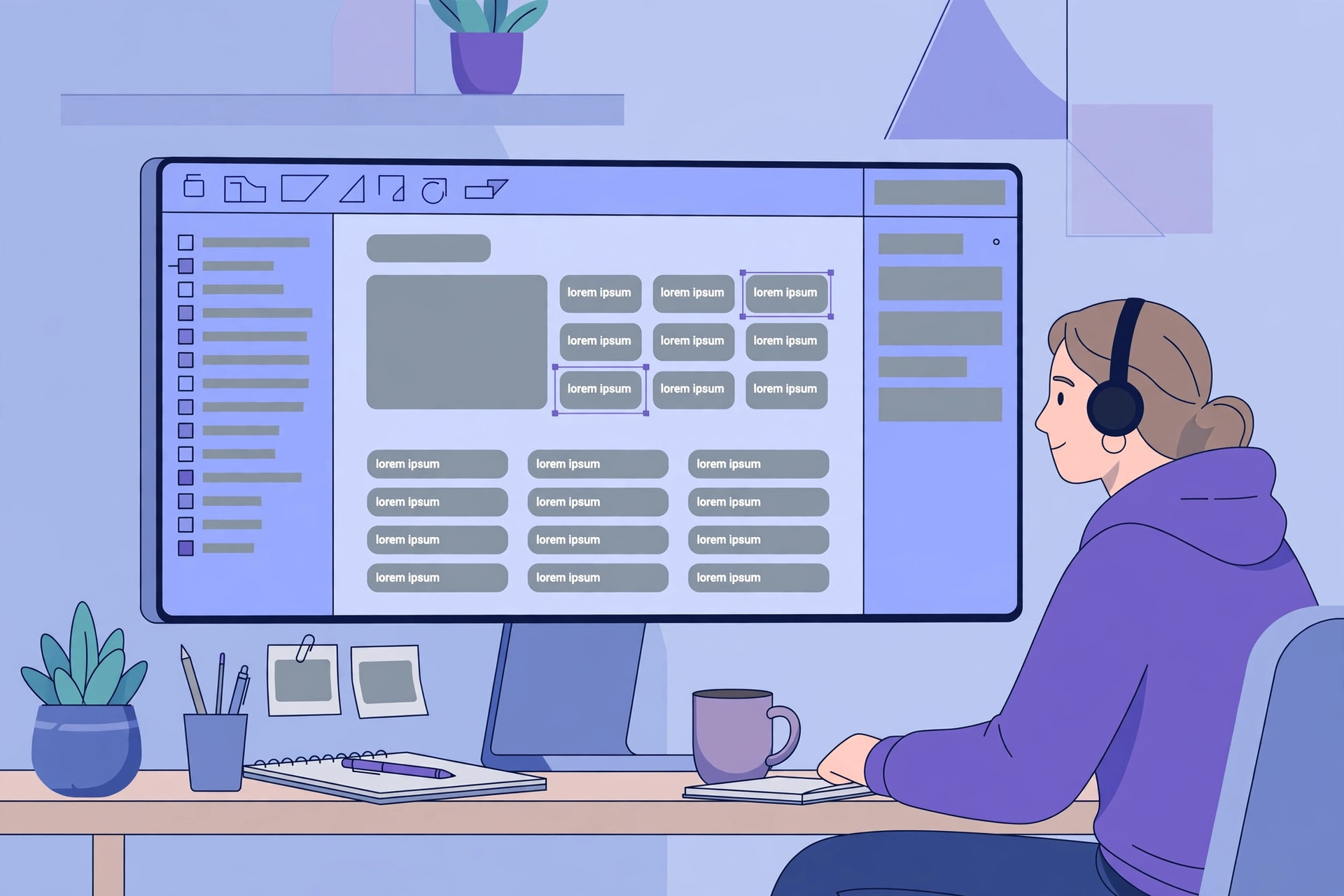
    A designer desk with a website layout filled with placeholder text lines

    When Should You Use Placeholder Text?

    Placeholder text is useful whenever the design needs to be judged before the words are final:

    • Website mockups and wireframes — show clients how a page will look without waiting for copy.
    • Print design — test brochures, posters and magazine layouts with realistic text flow.
    • App and UI design — check how cards, lists and screens behave with different text lengths.
    • Templates — give users a starting point they can replace with their own words.
    • Typography testing — compare fonts and sizes with neutral, distraction-free text.

    How to Use Our Free Lorem Ipsum Generator

    Using the tool takes less than a minute:

    1. Open the Lorem Ipsum Generator homepage.
    2. Choose how many paragraphs, sentences or words you need.
    3. Click generate to create your dummy text instantly.
    4. Copy the result and paste it into your design, document or website.

    There is no limit on how often you can use it, and the text it produces is free to use in personal and commercial projects.

    Lorem Ipsum vs. Real Content: Best Practices

    Placeholder text is a stand-in, not a substitute for real writing. Keep these points in mind:

    • Replace it before launch. Never publish a live page with lorem ipsum still in it — search engines and visitors both notice.
    • Match the length. Generate roughly the same amount of text as the final copy, so your layout does not break when real words arrive.
    • Do not judge readability on it. Lorem ipsum tells you how a design looks, not how easy your real content will be to read.
    • Use it early. Filler text is most valuable in the first drafts, when the design is still changing.

    Frequently Asked Questions

    Is a lorem ipsum generator free to use?

    Yes. Our lorem ipsum generator is completely free, with no sign-up and no limits on how much dummy text you create.

    What is the difference between a lipsum generator and a lorem ipsum generator?

    There is no difference — “lipsum” is simply a short form of “lorem ipsum”. Both terms describe the same tool, and both produce the same kind of placeholder text.

    Can I use dummy text in a commercial project?

    Yes. Lorem ipsum text is in the public domain, so you can use it in commercial designs, mockups and templates without worrying about copyright.

    How much placeholder text should I generate?

    Generate about as much as your final copy will be. If the real text will be three short paragraphs, three paragraphs of filler will show you the true layout. Too little or too much filler gives a misleading preview.

    Conclusion

    Whether you search for it as a lorem ipsum generator, a lipsum generator, a dummy text generator, a placeholder text generator or a random text generator, the goal is the same: quick, realistic filler text that lets your design speak first. Try our free tool, generate exactly the amount of text you need, and replace it with real words when your copy is ready. Your layouts will look better for it — and your clients will see the design, not a blank page.